
AI Scribe
Record your consultation, automatically transcribe the conversation, and use AI to fill your custom patient notes, recommend handouts and annotate diagrams.
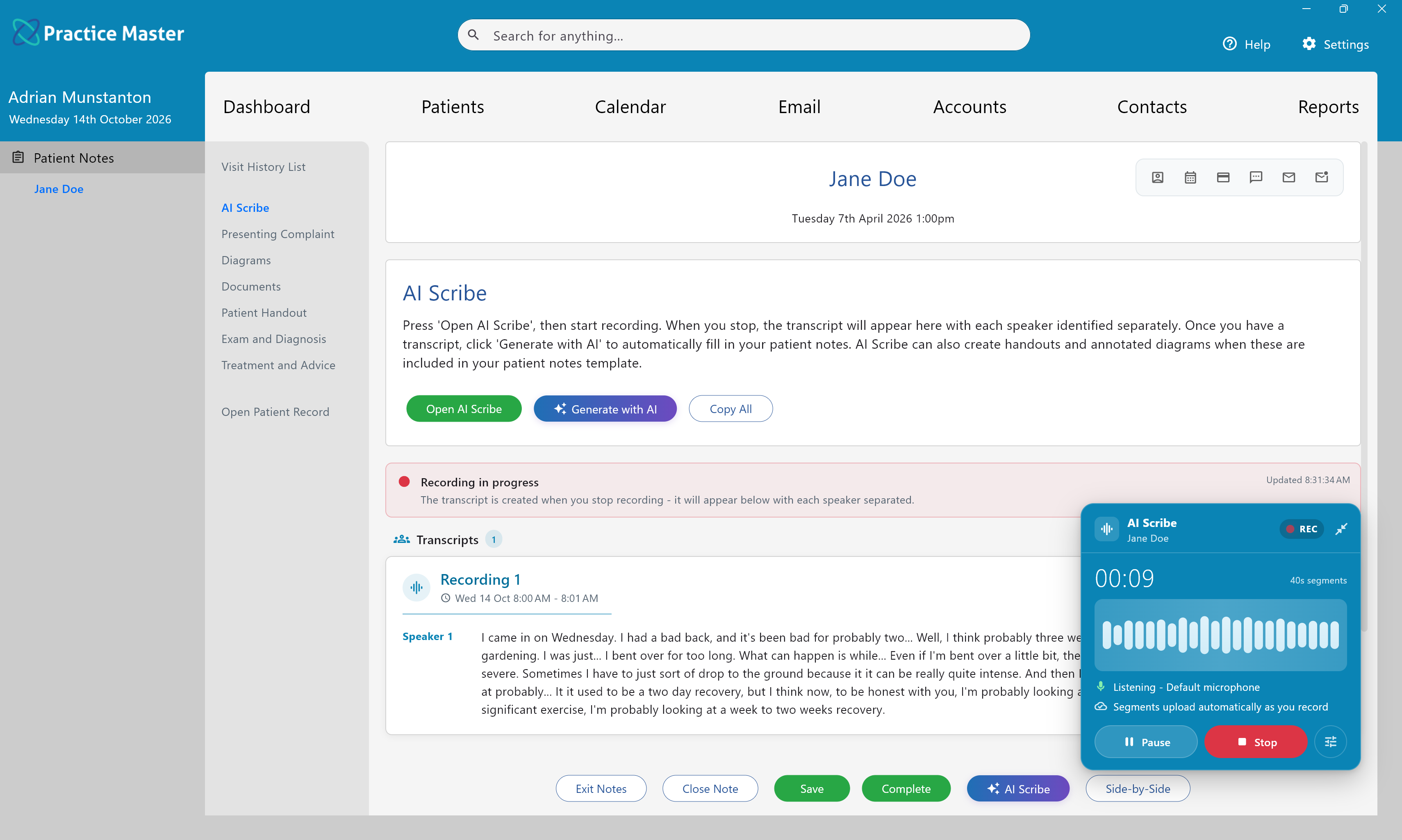
- Record patient and practitioner conversations with automatic transcription and separate speaker labels.
- Keep recording through intermittent internet, with uploads continuing when the connection returns.
- Add further recordings and transcripts at any time.
- Generate notes using your fully custom patient notes templates, including text, custom lists and multiple choice answers.
- Recommend exercises and advice from your handout library.
- Let AI select and annotate relevant diagrams, or choose specific diagram backgrounds yourself.
- Guide answers with AI Hints and regenerate notes from retained transcripts.
Overview
AI Scribe turns the conversation between you and your patient into a written transcript stored against the patient notes. Open the AI Scribe tab in the patient's notes, record the consultation, then click Stop. The transcript is created automatically, with different speakers identified separately by labels such as Speaker 1 and Speaker 2.
You can stop recording and begin again whenever you need to, regardless of how long the break lasts. Each new recording adds a separate transcript. Recording is tolerant of intermittent internet: if the connection drops, recording continues and audio waiting to upload is uploaded when a connection becomes available again.
Once your transcripts are ready, click Generate with AI to create patient notes from the conversation. AI Scribe works with any patient notes template you create, so you can keep your own questions, tabs and clinical workflow. It can fill text fields, custom lists and custom multiple choice questions, recommend items from your handout library, and create annotated diagrams using the diagram backgrounds available in the system.
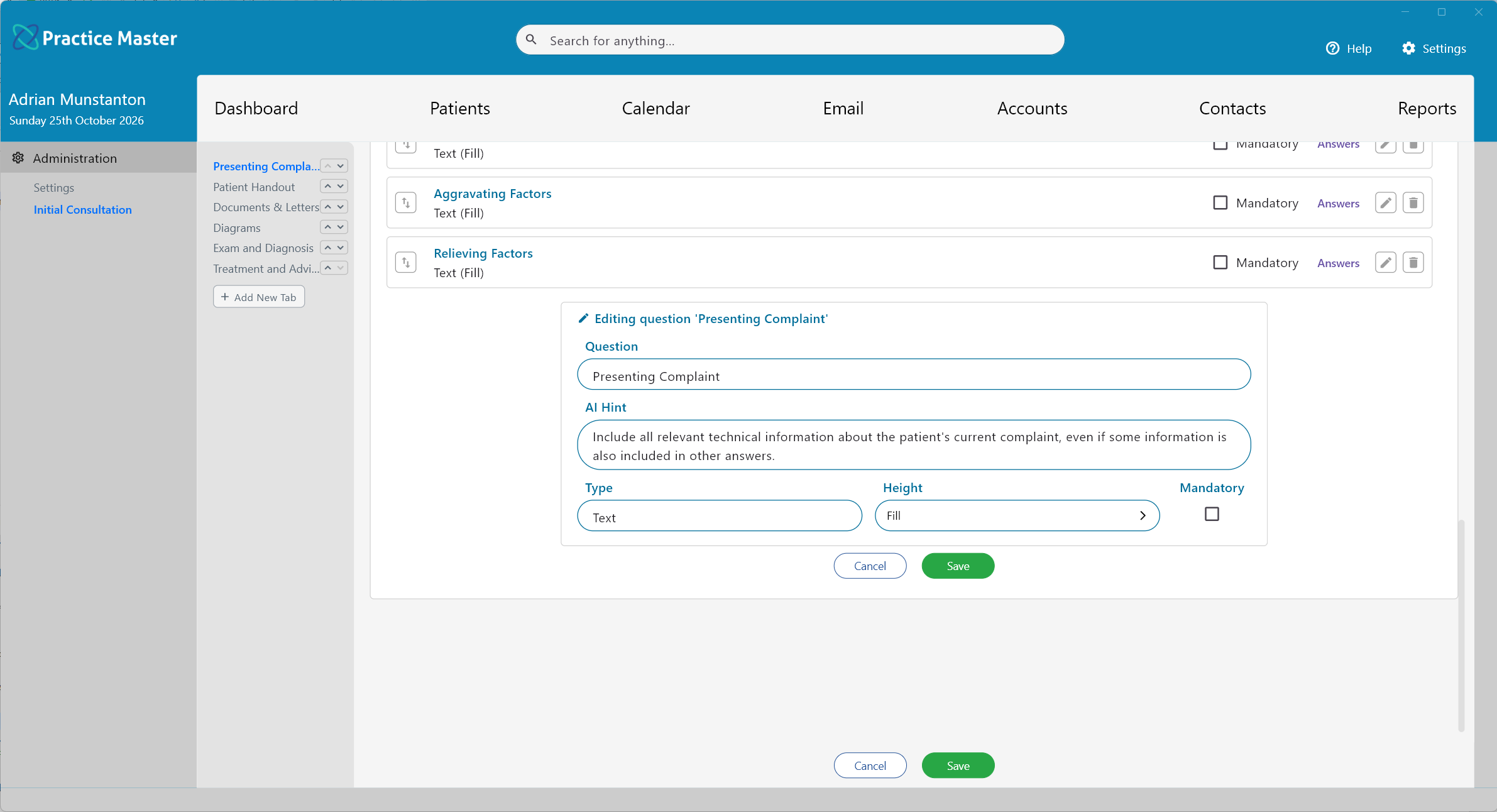
Use AI Hints in the patient notes template editor (in the Settings area of the app) to guide how individual questions are answered. Review the generated notes, handouts and diagrams, make any changes you need, then save or complete the notes.
Common Tasks
The following common tasks can help you get the most out of this screen:
Recording a Consultation
- Open the correct patient's notes and select the AI Scribe tab.
- Make sure you have the patient's permission to record the conversation.
- Click Open AI Scribe to open the recording panel.
- Click Start recording and conduct your consultation.
- When you have finished, click Stop. The transcript is created automatically and appears in the Transcripts section once processing is complete.
- Read the transcript, where each speaker's contributions are shown separately.
Adding Another Recording
- Return to the same patient's notes and open AI Scribe when you are ready to record again.
- Click Start recording to capture the next part of the conversation. There is no need to start the consultation again.
- Click Stop when finished. The additional recording appears as a separate transcript alongside the earlier recordings.
- Wait for the transcripts you need to be ready before generating the patient notes.
Generating Patient Notes, Handouts and Diagrams
- After stopping your recordings and allowing transcription to finish, click Generate with AI.
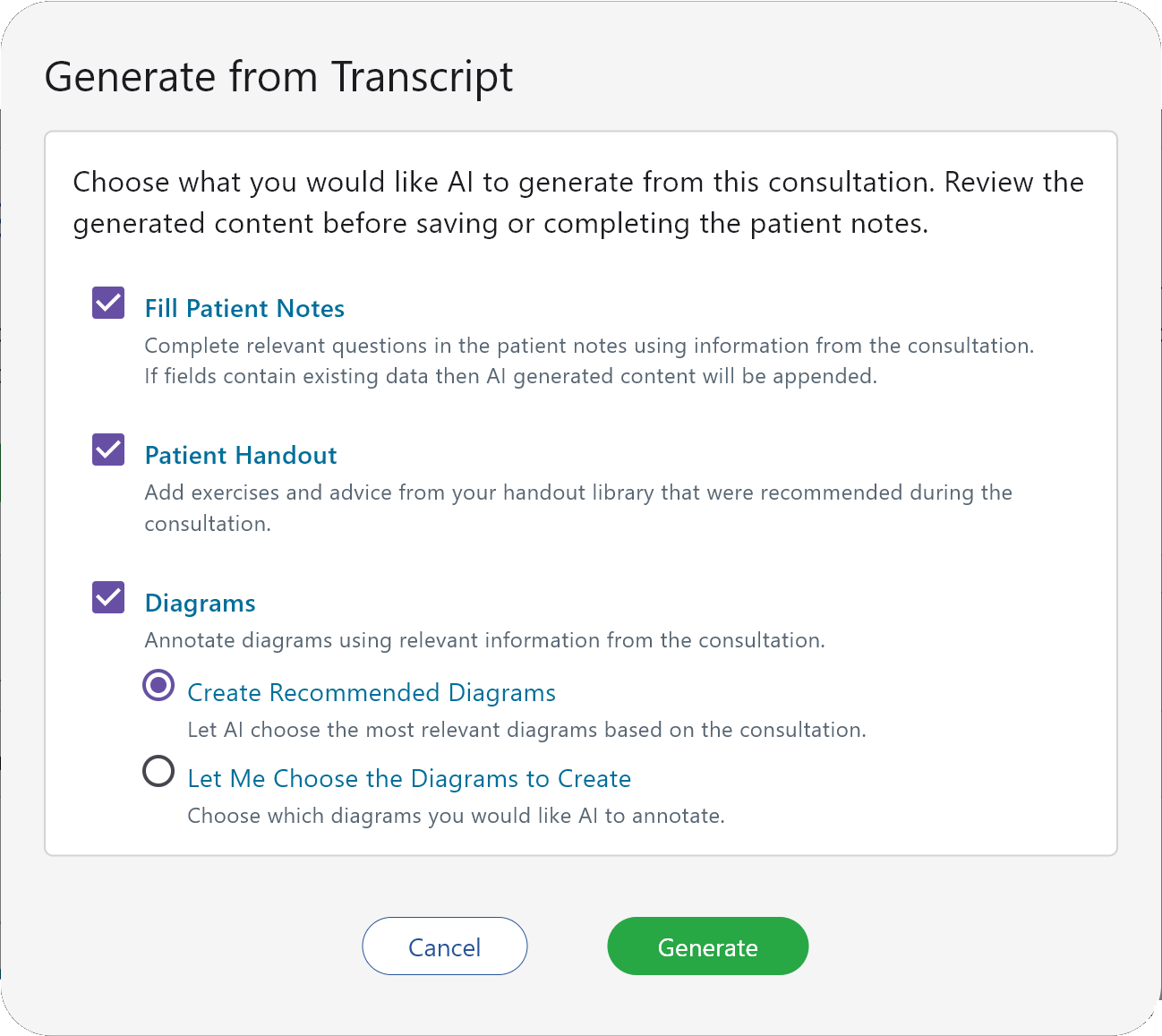
- In Generate from Transcript, select the content you want to create. You can choose Fill Patient Notes, Patient Handout and Diagrams as required.
- Select Fill Patient Notes to answer relevant questions in your template from the consultation. Where fields already contain data, AI-generated content is appended.
- Select Patient Handout to add exercises and advice from your handout library that were recommended during the consultation. Include a patient handout section in your template to use this feature.
- Select Diagrams to annotate diagram backgrounds with relevant consultation details. Include a diagrams section in your template to use this feature.
- For diagrams, select Create Recommended Diagrams to let AI choose, or Let Me Choose the Diagrams to Create and tick the specific backgrounds you want annotated.
- Click Generate and allow AI to prepare the selected content.
- Review the answers in your patient notes tabs, check the handouts and diagram annotations, and edit anything that needs changing. Click Save, or Complete when the notes are finalised.
Guiding Answers with AI Hints
- Open Settings > Patient Notes > Patient Notes Templates and edit the patient notes template you want to refine.
- Select the tab containing the question, then use the question's edit button.
- Enter guidance in AI Hint. Describe the information to include, the level of detail or the format you want for that answer.
- For example, for a presenting complaint question, you could enter: Include the location, onset, duration, aggravating factors and relieving factors discussed in the consultation. Use concise bullet points.
- Save the question and save the template. The hint guides the AI when you next generate notes using that template.
Regenerating Notes After Refining a Template
- If the generated notes do not match your preferred result, review which questions need clearer AI Hints.
- Update and save the relevant hints in the patient notes template in Settings > Patient Notes > Patient Notes Templates.
- Delete the patient notes you want to replace. Transcripts are retained when patient notes are deleted; you do not need to record the conversation again.
- Use the retained transcripts to generate notes again with the updated template and hints.
- Review the new results before saving or completing the notes.
Screen Reference
A detailed description of various screen elements:
Open AI Scribe and the Recording Panel
Open AI Scribe opens the recorder. The panel shows the patient's name, recording status, elapsed time and audio activity, together with the recording controls. Use Start recording to begin and Stop to finish the recording and create its transcript.
Recording Status and Transcripts
The status area shows recording or transcription progress and the number of recordings transcribed. Each transcript is displayed in its own card with a recording number, date and time, and speaker-labelled text. Speaker labels distinguish the voices in the conversation; they do not identify speakers by name.
Copy All, Copy and Delete
Use Copy All to copy all transcripts, or Copy on an individual recording to copy just that transcript. Delete on a transcript removes that transcript. This is different from deleting patient notes, which leaves the transcripts available for generating notes again.
Generate with AI
Opens Generate from Transcript, where you choose whether to fill patient notes, add a patient handout, create annotated diagrams, or generate a combination of these. The diagram options let you choose between automatic recommendations and selecting specific backgrounds.
AI Hint in the Template Editor
Each question's AI Hint field provides extra instructions for that answer. Hints belong to the template, so you can refine your preferred documentation style once and use it in future consultations. They are optional: add them where a question needs more guidance.
Tips
Helpful tips for this screen are below:
Check the patient and microphone before recording
Confirm the patient's name in the recording panel and obtain permission before starting. Speak clearly and position the microphone so both you and the patient can be heard. Check the recording status and audio activity when you begin.
An interrupted connection does not mean an interrupted recording
AI Scribe continues recording if the internet connection drops and uploads when a connection is available again. Allow any pending uploads and transcription to finish before generating your notes.
Be specific with AI Hints
Give each question clear, focused guidance. For example, ask for a short summary, a chronological history, or all relevant technical details even where some information also appears in another answer. Hints guide the presentation of information from the consultation; include the details you need in the recorded conversation.
Review before saving or completing
Check that the generated content accurately reflects the consultation, including symptoms, examination findings, advice, selected list answers and diagram annotations. Confirm that recommended handouts are appropriate, and make any corrections before saving or completing the notes.
Refine your results without recording again
Transcripts are not deleted when patient notes are deleted. You can refine your template's AI Hints, delete the notes you want to replace, and generate them again from the same transcripts. If you generate into fields that already contain data, the new content is appended, so check for repetition. Keep the transcripts you need for regeneration rather than using Delete on their recording cards.