
Send, receive and manage all of your practice email accounts from within Practice Master.
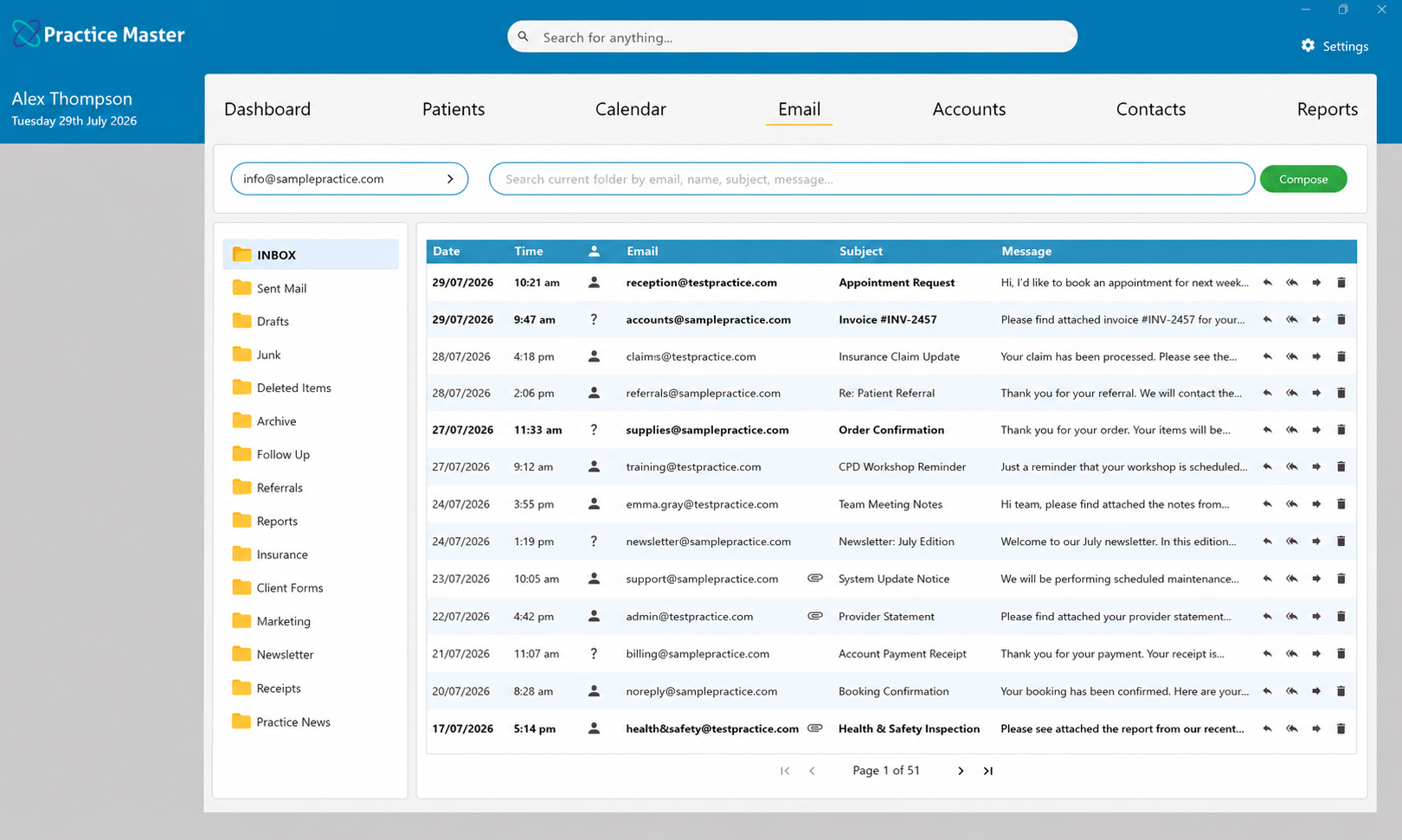
Key Activities
- Manage one or more email accounts without leaving Practice Master.
- Browse folders such as Inbox, Sent Items, Drafts and custom folders.
- Search the current folder by sender, recipient, subject or message text.
- Compose new emails directly from the Email screen.
- Reply, Reply All, Forward or Delete messages using the action buttons.
- Patient correspondence is automatically available from within the patient record.
Overview
The Email screen provides a complete email client built directly into Practice Master. It allows practitioners and administration staff to manage their email without switching to a separate application.
Multiple email accounts can be configured, with each account maintaining its own folders, messages and correspondence. Emails can be searched, read, replied to and organised in the same way as a traditional desktop email application.
Common Tasks
The following common tasks can help you get the most out of this screen:
Compose a new email
- Click Compose.
- Enter the recipient, subject and message.
- Add attachments if required.
- Click Send.
Read an email
- Select the required folder.
- Click an email in the message list.
- The full email will open for reading.
Search for an email
- Select the folder you wish to search.
- Type part of the sender, recipient, subject or message into the search box.
- The message list filters automatically as you type.
Reply to an email
- Open the required email.
- Click Reply, Reply All or Forward.
- Edit the message if required and click Send.
Screen Reference
A detailed description of various screen elements:
Email Account
Selects the email account currently being viewed. If multiple email accounts have been configured, you can quickly switch between them using this control.
Search Box
Searches the currently selected folder by sender, recipient, subject or message content, allowing you to quickly locate emails.
Compose
Opens a new email ready for composing. New messages can include attachments and may be linked to patients where appropriate.
Folder List
Displays all folders available for the selected email account, including standard folders such as Inbox, Sent Items, Drafts, Spam, Deleted Items and any custom folders created within your email account.
Message List
Displays the emails contained within the currently selected folder, including the date, time, sender, subject and a preview of each message.
Attachment Indicator
A paperclip icon indicates that the email contains one or more attachments.
Message Actions
- Reply to the sender.
- Reply All to everyone included in the conversation.
- Forward the email to another recipient.
- Delete the email.
Quick action buttons appear beside each email allowing you to:
Pagination
Use the paging controls at the bottom of the screen to move through large folders of email messages.