
Reports
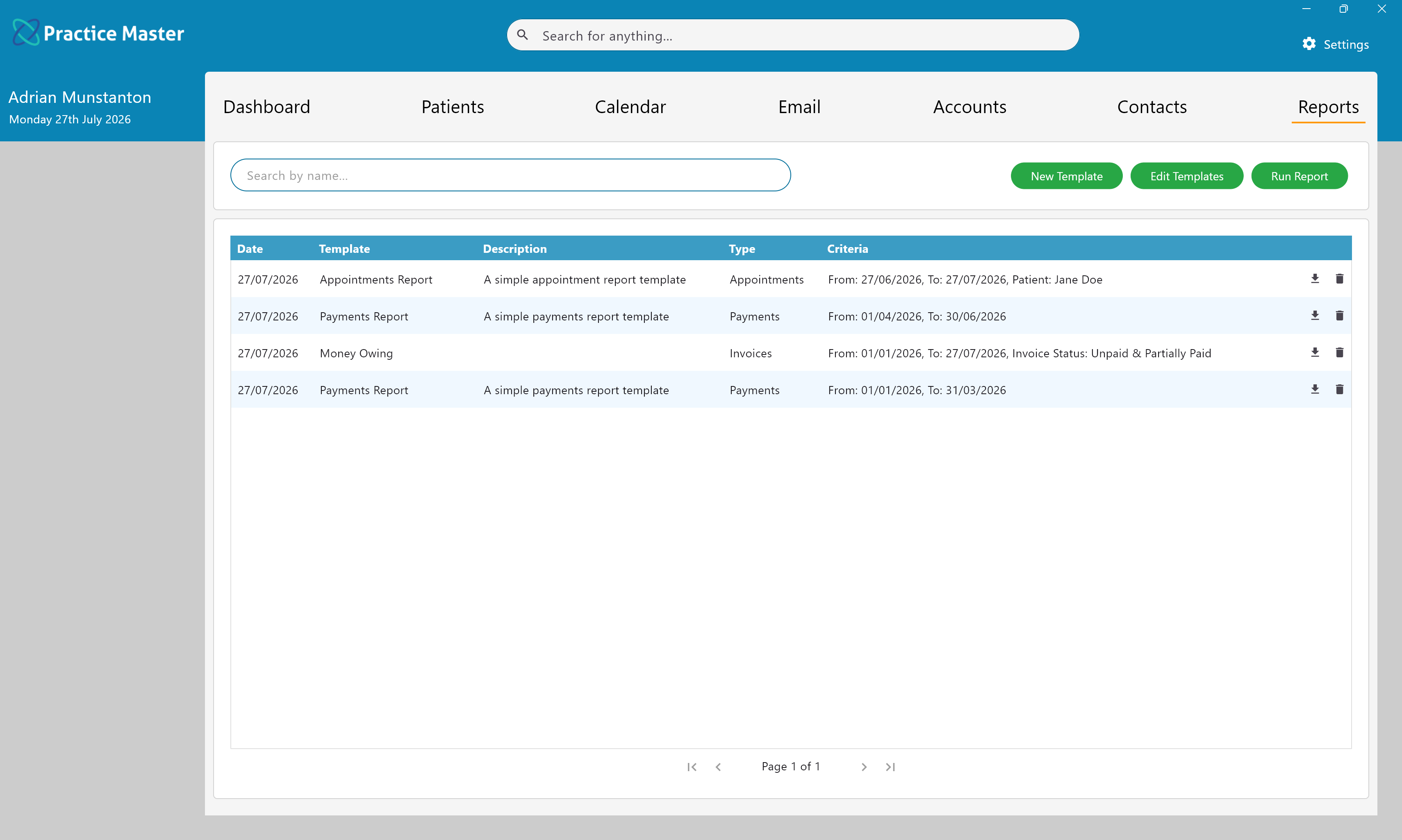
Create, run and manage reusable report templates to quickly generate reports throughout your practice.
Key Activities
- Create reusable report templates for commonly performed reports.
- Edit existing templates to modify report criteria.
- Run reports at any time using the stored template settings.
- Email completed reports directly from Practice Master.
- Export reports to CSV for further analysis in spreadsheet applications.
Overview
The Reports screen provides access to all saved report templates within your practice. Rather than creating report criteria from scratch each time, Practice Master allows commonly used reports to be saved as reusable templates which can be run whenever required.
Each report template stores its selected criteria, allowing consistent reporting while reducing repetitive data entry. Reports can be viewed, emailed, exported to CSV or deleted directly from this screen.
Common Tasks
The following common tasks can help you get the most out of this screen:
Create a report template
- Click New Template.
- Select the report type.
- Configure the report filters and criteria.
- Save the template for future use.
Run a report
- Click Run Report.
- Select the required report template.
- Make any required changes to the default criteria.
- Review the generated report.
Export or Email a report
- Run the required report.
- Right-click the report in the list.
- Select Save Externally or Email Report.
Screen Reference
A detailed description of various screen elements:
Search
Quickly locate report templates by searching for part of the template name or description.
Report List
Displays all saved reports together with their creation date, template name, description, report type and the criteria that was used to generate the report.
Saving the report criteria makes it easy to identify exactly how each report was produced and allows the same report to be generated again in the future.
New Template
Opens the Report Template editor where new report templates can be created. Templates define the report type together with the filters and criteria used when generating the report.
Edit Templates
Opens the template management screen where existing report templates can be modified, allowing changes to filters, report options and default criteria.
Run Report
Generates the selected report using the stored template settings. Reports are produced using the current practice data while applying the saved criteria contained within the template.
Right-Click Menu
- Open Report - Opens the selected report for viewing.
- Email Report - Opens the email compose window with the report attached.
- Save Externally - Exports the report as a CSV file for use in spreadsheet applications such as Microsoft Excel.
- Delete Report - Permanently removes the report from the report list.
Right-click any report to access additional actions:
Tips
Helpful tips for this screen are below:
Create templates for frequently used reports
Rather than configuring the same filters repeatedly, save commonly used report criteria as templates. This ensures reports remain consistent across the practice while significantly reducing preparation time.
Export reports for further analysis
CSV exports can be opened in Microsoft Excel and other spreadsheet applications, making it easy to perform additional analysis, create charts or share data with external organisations.
Use descriptive template names
Giving report templates meaningful names makes them much easier to locate using the search box, particularly in practices with a large number of saved reports.
Review saved criteria before running reports
The report list displays the criteria used to generate each report, making it easy to confirm the correct date ranges, patient filters or invoice statuses before generating a new report.