
Contacts
Maintain a central directory of practitioners, specialists, suppliers, companies and other professional contacts used throughout Practice Master.
Key Activities
- Maintain a single database of professional contacts.
- Create practitioners, specialists, suppliers, companies and other contacts.
- Open a Contact Record to manage referrals, documents, invoices and correspondence.
- Quickly locate contacts using the search box or alphabetical index.
- Access common actions directly from the right-click menu.
Overview
The Contacts screen provides a central directory of the people and organisations your practice works with. Contacts can include practitioners, specialists, suppliers, employers, insurance companies, laboratories and any other professional relationship your practice needs to maintain.
Contacts integrate throughout Practice Master and can be selected when creating referrals, invoices, correspondence, appointments and many other records.
Double-click a contact, or click the Open Contact Record icon, to open the Contact Record where additional information and related records can be managed.
Common Tasks
The following common tasks can help you get the most out of this screen:
Create a new contact
- Click New Contact.
- Enter the contact's details.
- Click Save.
Edit a contact
- Double-click a contact in the list.
- Alternatively click the Open Contact Record icon beside the contact.
- Make your changes and save.
Find a contact
- Begin typing into the search box.
- Optionally click one of the alphabetical filters to jump directly to contacts beginning with that letter.
Screen Reference
A detailed description of various screen elements:
Search
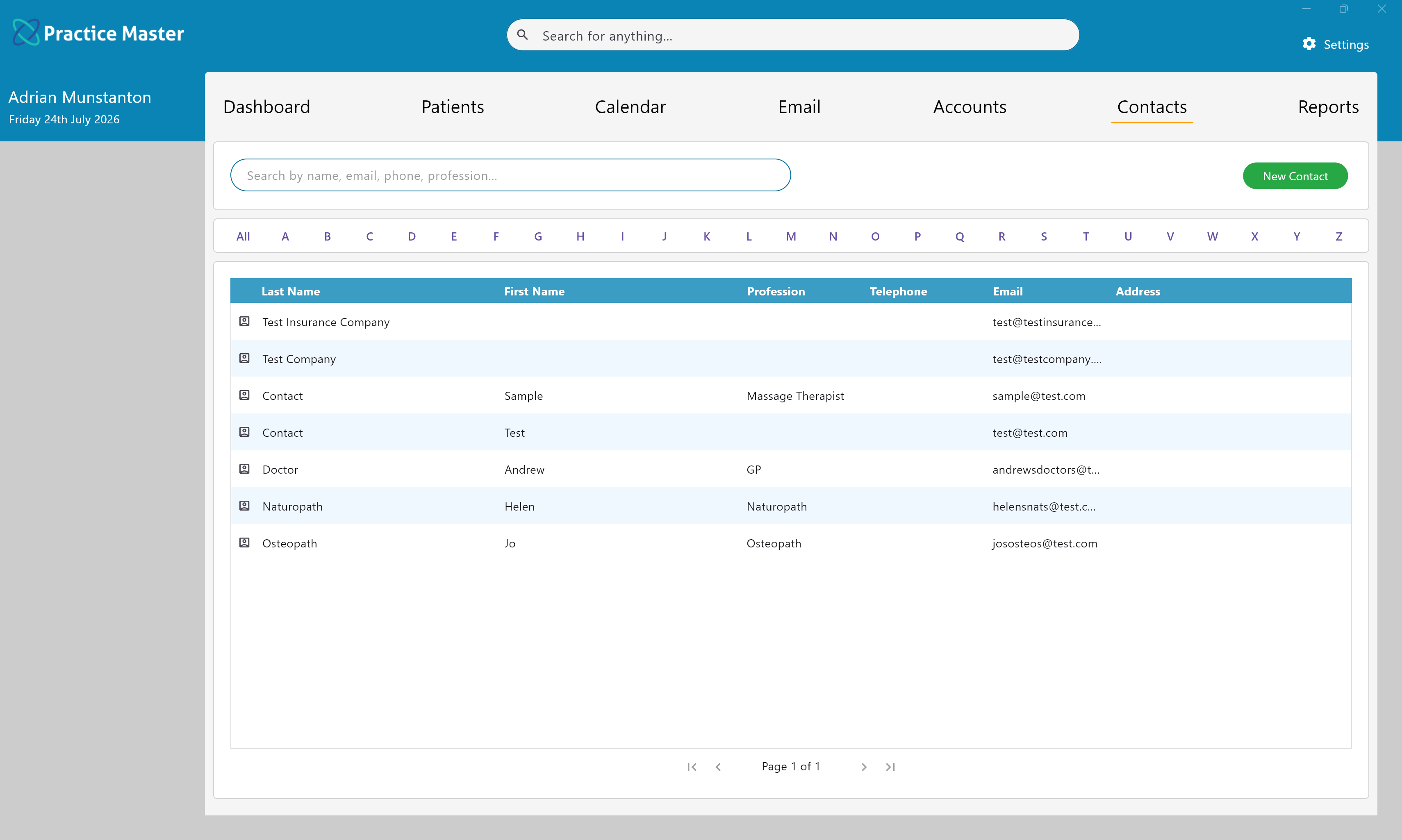
Searches contacts by name, email address, telephone number or profession as you type.
Alphabet Filter
Quickly jump to contacts whose surname or organisation begins with the selected letter.
Contact List
Displays all contacts together with their profession, telephone number, email address and primary address.
Double-click any row to open the Contact Record.
Open Contact Record
Clicking the icon to the left of a contact opens the Contact Record without needing to double-click the row.
New Contact
Creates a new Contact Record which can then be used throughout Practice Master when creating referrals, invoices, documents and correspondence.
Right-click Menu
- Contact Record - Opens the selected contact.
- Accounting - Create invoices or view existing invoices for the contact.
- Documents - Create document templates or open the contact's documents.
- Email - Compose emails, create emails from templates or view correspondence.
- Send SMS - Send an SMS message using the contact's primary mobile number.
- Referrals - Refer patients to the contact or view all referrals received by the contact.
- Delete Contact - Permanently removes the contact.
Right-clicking a contact provides quick access to common actions including:
Tips
Helpful tips for this screen are below:
Contacts are shared throughout Practice Master
A contact only needs to be entered once. The same contact can then be selected when creating referrals, invoices, appointments, correspondence, document templates and many other records throughout the system.
Track referrals from both directions
Each Contact Record maintains its own Referrals page showing every patient that has been referred to that contact. Likewise, each Patient Record maintains a history of every contact the patient has been referred to.
Use professions to improve searching
Recording a profession such as GP, Specialist, Naturopath, Psychologist or Employer makes it much easier to locate contacts when creating referrals or searching the Contacts list.