
Patients
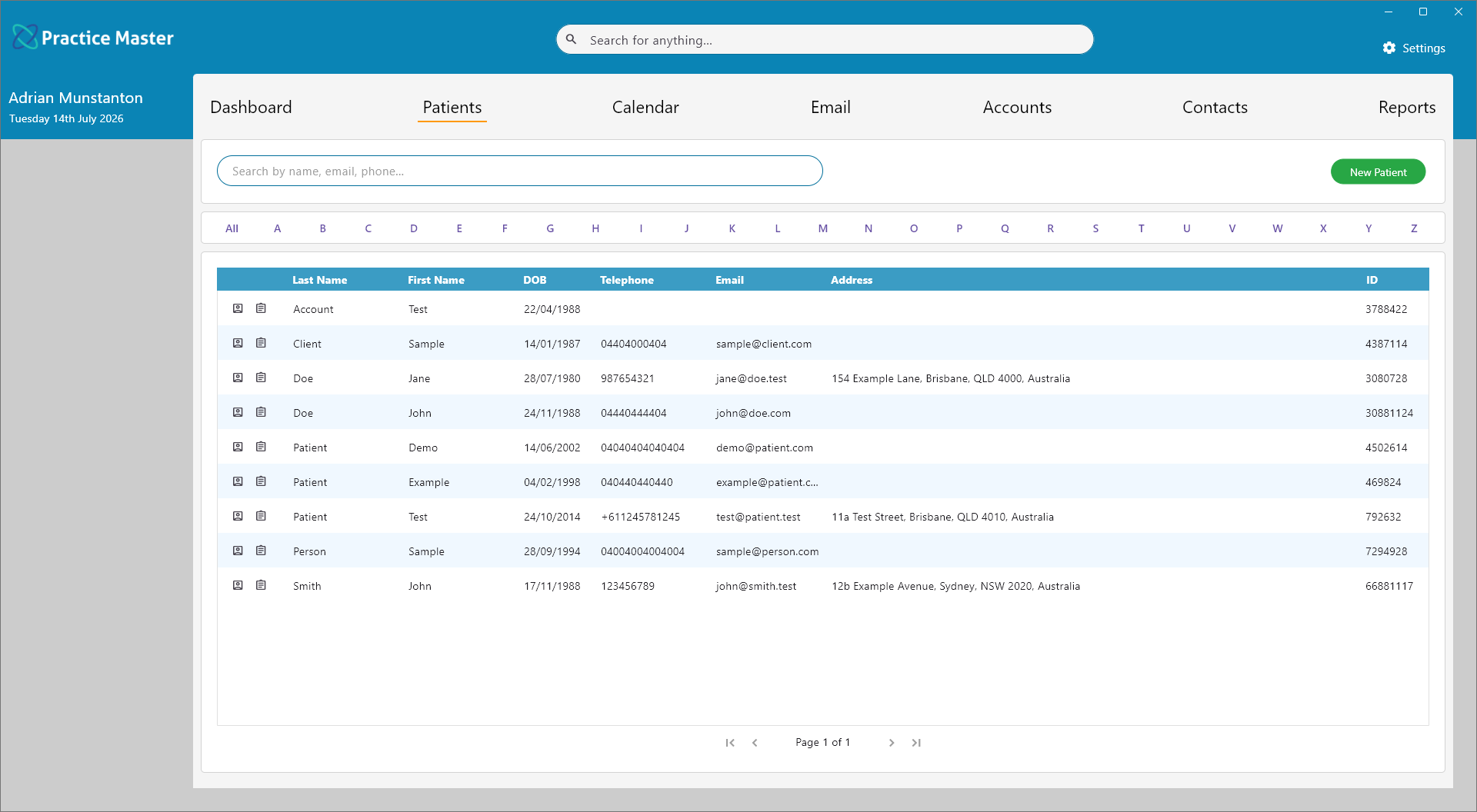
Search, manage and access every patient record from a single screen.
Key Activities
- Search patients by name, email address or phone number.
- Filter the list alphabetically using the A-Z filter.
- Double-click a patient to open their Patient Record.
- Use the buttons beside each patient to quickly open the Patient Record or Patient Notes.
- Right-click a patient for additional actions including appointments, invoices, documents, email, SMS and referrals.
- Click New Patient to create a new patient record.
Overview
The Patients screen is the central location for managing every patient in your practice. From here you can quickly search for patients, open their clinical record, access their notes, create appointments, manage correspondence and perform many other common tasks.
The patient list displays important identifying information including name, date of birth, telephone number, email address and address to help you quickly locate the correct patient. Most day-to-day patient management begins from this screen.
Common Tasks
The following common tasks can help you get the most out of this screen:
Create a new patient
- Click New Patient.
- Enter the patient's details.
- Click Save.
Find a patient
- Type part of the patient's name, email address or telephone number into the search box.
- Optionally click a letter in the A-Z filter to narrow the results.
- Select the required patient from the list.
Open a patient record
- Double-click the patient in the list, or
- Click the Open Patient Record button beside the patient.
Open patient notes
- Click the Open Patient Notes button beside the patient.
- The patient's clinical notes will open ready for viewing or editing.
Screen Reference
A detailed description of various screen elements:
Search Box
Quickly locate patients by entering part of their name, email address or telephone number. The patient list updates automatically as you type.
A-Z Filter
Filters the patient list alphabetically by surname, making it easy to browse large patient lists.
Patient List
Displays each patient's surname, first name, date of birth, telephone number, email address, address and internal patient ID.
Open Patient Record
Opens the selected patient's complete record including demographics, medical information, appointments and other patient details.
Open Patient Notes
Opens the patient's clinical notes where consultations can be viewed, edited and new notes recorded.
Right-Click Menu
- Patient Record - Open the patient's record.
- Patient Notes - Open the patient's clinical notes.
- Book Appointment - Create a new appointment for the patient.
- Accounting - Invoice the patient or view existing invoices.
- Documents - Create document templates or open the patient's documents.
- Email - Compose emails, send templates or view correspondence.
- Send SMS - Send an SMS message to the patient.
- Intake Form - Email an intake form link or open an existing intake form.
- Referrals - Create referrals or view existing referrals.
- Merge Patient - Merge duplicate patient records.
- Delete Patient - Remove the patient from the system.
Right-clicking a patient provides quick access to many common actions:
New Patient
Creates a brand new patient record ready for appointments, clinical notes, invoices and other practice management tasks.