
AI Insights
Chart patient progress, compare findings and let AI prepare consultation briefings from patient notes and attached documents, guided by your own custom AI Hints.
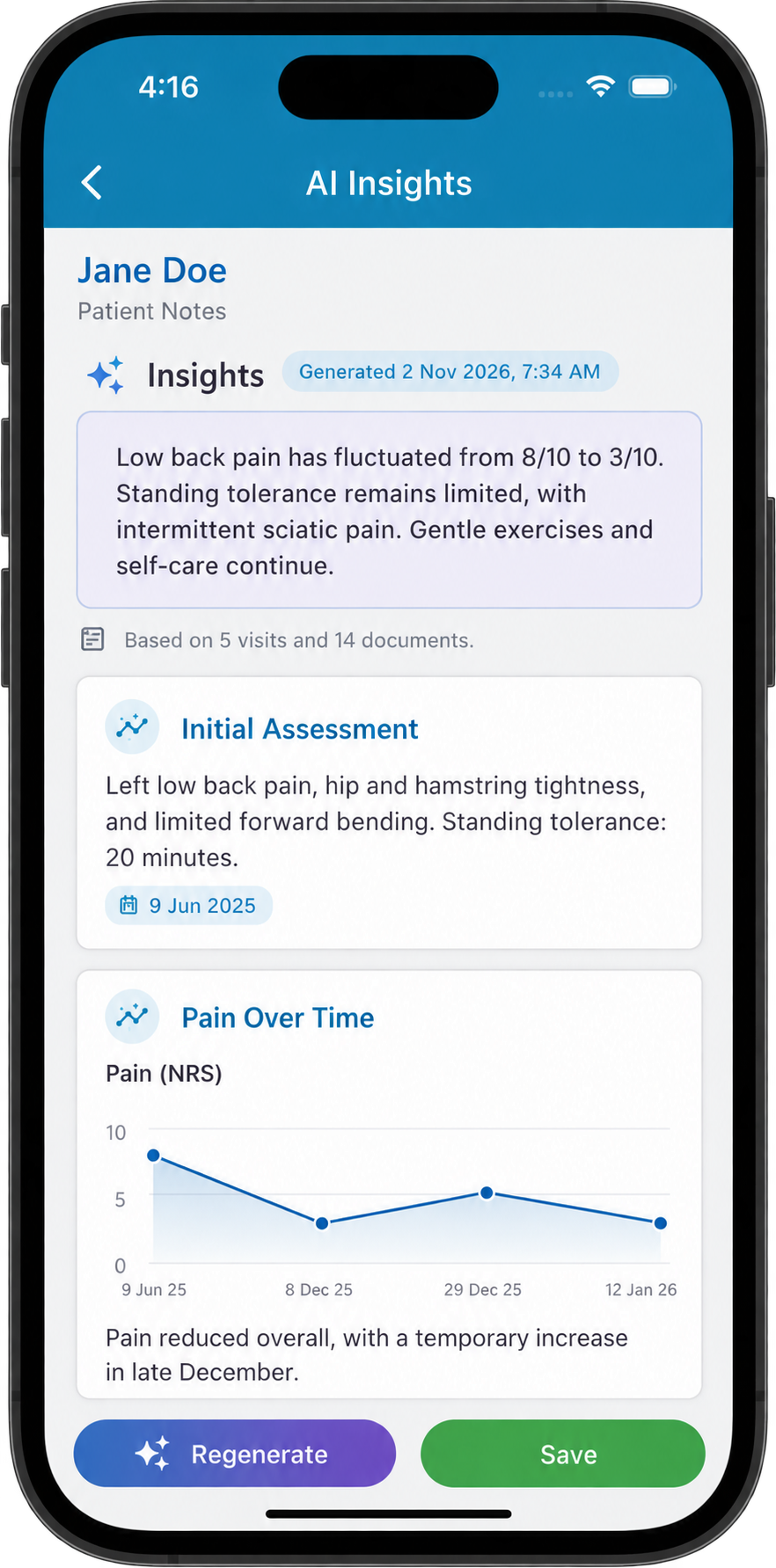
- Summarise progress towards recorded goals across visits.
- Chart comparable measurements and scores over time.
- Compare treatments, responses and results in tables.
- Combine summaries, charts and tables in one tab.
- Create several named AI Insights tabs for different purposes.
- Let AI do consultation prep: bring together recent changes, relevant results, recorded goals and outstanding follow-ups before the patient arrives.
- Refine reusable template hints or customise the AI Hint for an individual visit.
Overview
AI Insights reviews available previous patient notes and relevant documents in the patient's Documents & Letters area, including available scan reports, pathology results, referral letters and other attached files. This brings context from across visits and supporting records into one review. Your AI Hint tells it what to look for, compare and present. You can also choose whether to include notes from the current visit.
Set up reusable AI Insights tabs in Settings > Patient Notes > Patient Notes Templates. Give each tab a name, such as Patient Progress, Outcome Charts or Consultation Prep. One tab can combine several types of content, or you can create several tabs with different instructions in the same template.
In patient notes, open the tab and select Generate Insights. Generation requires an AI Licence. Results reflect the records available when you generate them; they do not update automatically as you write more notes. Review the result and its supporting sources, then refine your hint and regenerate when needed.
Common Tasks
The following common tasks can help you get the most out of this screen:
Setting Up an AI Insights Tab
- Open Settings > Patient Notes > Patient Notes Templates and edit the template you want to use.
- Add a tab, choose the Special Tab type and select AI Insights.
- In Set Up AI Insights, enter a meaningful Tab Name, such as Patient Progress.
- Under Which notes should AI consider?, choose whether to tick Include notes from the current visit. Previous notes and patient documents are included regardless of this option, subject to availability.
- In What would you like AI to do? (AI Hint), describe the task, information to focus on and format you want. You can select a Suggested AI Hint and adapt it.
- Save the template. Open a patient's notes using that template, select your tab and click Generate Insights.
- Check the result and sources. Adjust the hint if needed and generate again; changing a hint does not rewrite existing insights.
Creating a Patient Progress Report
- Create an AI Insights tab named Patient Progress.
- Include the current visit's notes if you want the report to reflect the consultation you are documenting. Save those notes before generating.
- Specify the reporting period, goals, outcomes and headings in the AI Hint. For example:
Example AI Hint
Summarise the patient’s progress through care using the available notes and documents.
Include:
Distinguish patient-reported improvement from measured changes. Highlight improvement, deterioration or lack of progress without assuming treatment caused the change. Identify missing or inconsistent information rather than filling gaps.
- Presenting complaint and initial symptoms, functional limitations and relevant assessment findings.
- Changes over time in pain, mobility, daily activities, work, sleep and exercise tolerance.
- Trends in recorded outcome measures. Use a table or chart where repeated comparable measurements are available.
- Treatment provided and the patient’s reported response, including how long any improvement lasted.
- Progress towards documented goals, adherence to advice or exercises, and recorded barriers to recovery.
- Persistent or worsening symptoms, new concerns, and documented referrals or investigations requiring follow-up.
- A brief summary of the latest visit and the documented plan for review.
Keep it concise, use clear clinical headings, and cite the dates of supporting notes or documents. Do not invent findings, diagnoses or treatment recommendations.
Preparing Before the Patient Arrives
- Add an AI Insights tab named Consultation Prep to the template.
- Leave Include notes from the current visit unticked to base the briefing on previous notes and available patient documents.
- Use an AI Hint that asks for a short briefing and documented follow-ups. For example:
Example AI Hint
Prepare a concise pre-consultation briefing from the available history before this visit. Include the main ongoing concerns, recorded goals, relevant alerts and precautions, what happened at the last visit, and any documented follow-ups or results to review. Highlight changes across recent visits and gaps worth clarifying. Finish with a short checklist of questions to confirm with the patient, clearly labelled as suggested questions. Cite supporting dates. Do not assume planned actions were completed or add new diagnoses or treatment recommendations.
Open the patient's notes and select Generate Insights before the appointment. This prepares the briefing when you request it; adding the tab does not schedule automatic generation before the patient arrives.
Creating Charts
- Create an Outcome Charts tab, or add chart instructions to an existing tab's AI Hint.
- Explicitly ask for a chart, graph or plot, and name the measurements as your practice records them.
- Specify the period, body site and side where relevant. Keep different measurements or scales in separate charts.
- Generate the insights and check the dates, values and units against the original records.
Example AI Hint
Plot separate charts of recorded right knee pain scores out of 10 and right knee flexion in degrees over the last six months up to this visit. Use only documented numeric values, comparing the same measure, body site, side and unit. Include a short description of each trend. If a measure has fewer than two dated values, explain why it cannot be charted. Do not estimate missing values.
Example AI Hint — Pathology Results from Attached Files
Review the available pathology reports in the patient's attached documents and files. Plot separate charts of haemoglobin, ferritin and vitamin B12 results over the last 12 months up to this visit, where at least two comparable dated results are available. Use the specimen collection date rather than the upload date, and label each chart with the test name and reported units. Keep results with different units or non-comparable test methods separate. Do not count the same result twice if it appears in multiple files. Include the reference range from each report where available, noting any changes between reports. Add a brief description of each trend and identify the source document and collection date for each result. If dates, values or units are missing or unclear, explain what could not be charted. Do not estimate missing results, infer diagnoses or recommend treatment.
Charts need comparable numeric measurements on at least two dates. A description such as feels better is useful in a summary, but does not supply a numeric chart point. No special chart code is needed in your hint.
Creating Tables
- Ask for a table and name the columns you want.
- Describe what each row represents, such as one visit or one dated document result.
- Specify the date order and what to show when a detail was not recorded.
Example AI Hint
Create a table of the last six available visits up to this visit, oldest first. Use columns: Visit date, Main concern, Treatment recorded, Reported response, Planned follow-up. Use one row per visit. Keep each cell concise and write "Not recorded" where a detail is absent. Do not infer a treatment response from attendance alone.
Combining a Report, Charts and Tables in One Tab
- Create one AI Insights tab named Progress Overview.
- Give the AI Hint a numbered list of the sections you want, in display order.
- Describe each section's format and keep the reporting period consistent.
Example AI Hint
Review the last three months up to this visit. Present these sections in order:Give supporting dates, identify missing information and do not invent measurements or outcomes.
- A brief progress summary against the patient's recorded goals.
- Separate charts of documented pain scores out of 10 and right knee flexion in degrees, where comparable dated values exist.
- A table with columns Date, Treatment, Response and Planned follow-up, one row per visit.
- A short list of documented items still needing review.
The result can contain text, charts and tables together. You do not need to create a separate tab for each format.
Creating Several AI Insights Tabs
- In the same patient notes template, add a separate AI Insights special tab for each purpose.
- Give each a distinct name, such as Patient Progress, Outcome Charts, Results Review and Consultation Prep.
- Write a focused AI Hint for each tab. Each tab should describe everything it needs without relying on instructions in another tab.
- Choose the current-visit option separately for each tab. A progress report may include today's notes while a preparation tab uses previous records.
- Save the template, then open and generate the relevant tabs in patient notes.
Screen Reference
A detailed description of various screen elements:
Tab Name and AI Hint in Settings
Tab Name identifies the tab in patient notes. The tab's AI Hint describes the whole output you want. This differs from a question's AI Hint used by AI Scribe to fill an individual answer.
Suggested AI Hints provide starting points you can adapt. Leaving the hint blank lets you start with an empty tab and ask ad-hoc questions directly in patient notes.
Include Notes from the Current Visit
This option controls whether the tab considers the visit you are documenting as well as previous records. Save your latest notes and generate again to include changes; an earlier result remains a snapshot of the information available at generation time.
Generate Insights, Regenerate and Copy
Generate Insights creates the result for the open tab. Once a result exists, use Regenerate to produce it again. Copy copies a text version; check the formatting when pasting it elsewhere.
AI Hint in Patient Notes
The AI Hint area lets you customise instructions for these notes. Changes are saved with the notes. Save before generating with an updated hint. To change the reusable instructions for future use, edit the tab in Settings.
Sources and Record Coverage
Supporting dates help you check statements against visits and documents. Review the coverage information and any notices about unavailable records or documents not yet read. A missing result does not mean the patient has no relevant history. Generate again once pending documents have been processed if you need them included.
Tips
Helpful tips for this screen are below:
Say what to examine and how to present it
A useful hint names the purpose, time period, relevant records or measures, output format and level of detail. Replace a broad request such as Show progress with Compare recorded pain and walking tolerance across the last six visits; give a brief summary and a dated table.
Use the measurement names in your notes
Name the exact score, body site and units you want charted. Keep different scales separate. Consistently recording dated measurements gives AI more useful information to compare.
Refine one instruction at a time
If the result is too long, specify fewer sections or shorter bullet points. If it is too general, name the goals or measures to focus on. If you want a table, specify its columns. Save the changed hint and regenerate to assess the difference.
Keep reusable hints suitable for different patients
Use phrases such as the patient's recorded goals in template hints. Put patient-specific questions or a one-off reporting period in the AI Hint for that visit.
Check the result against the record
Review dates, measurements, trends and source records before using a report or briefing. Missing records and unrecorded information can limit the result. Treat suggested questions as prompts for your review and confirm the patient's current situation during the consultation.